Have you imagined carrying a machine that burns precise designs into wood, leather, or metal while you sip coffee at a farmer’s market stall?
Introduction
You’re about to enter the world of portable laser engravers, and you’ll find that the experience mixes equal parts excitement, mild paranoia about fires, and the delight of making beautiful things with your own hands. This guide will walk you through everything you need to know before buying, from laser types to software choices, safety, and the little tricks seasoned users don’t tell beginners until they ask.
What is a portable laser engraver?
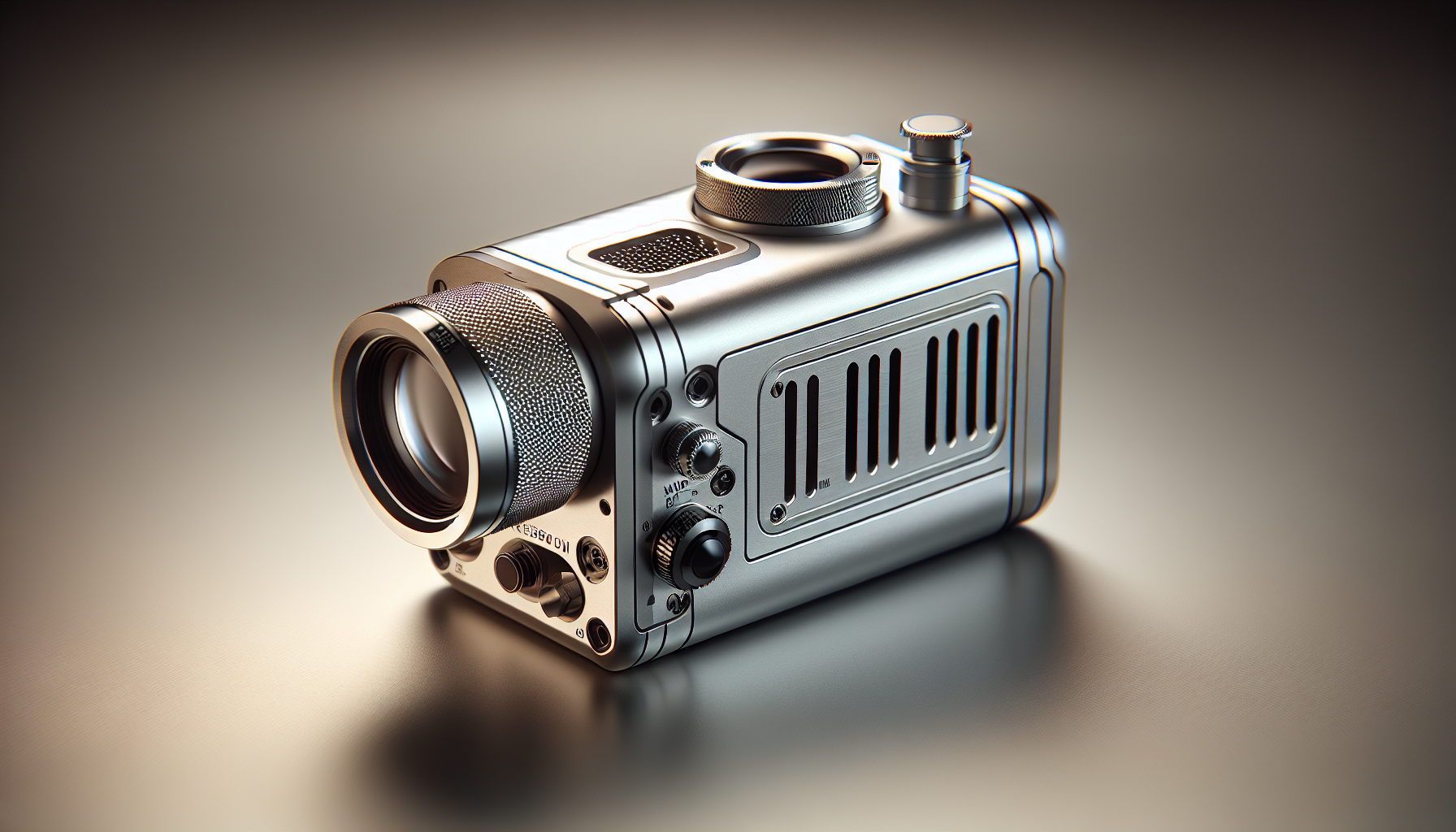
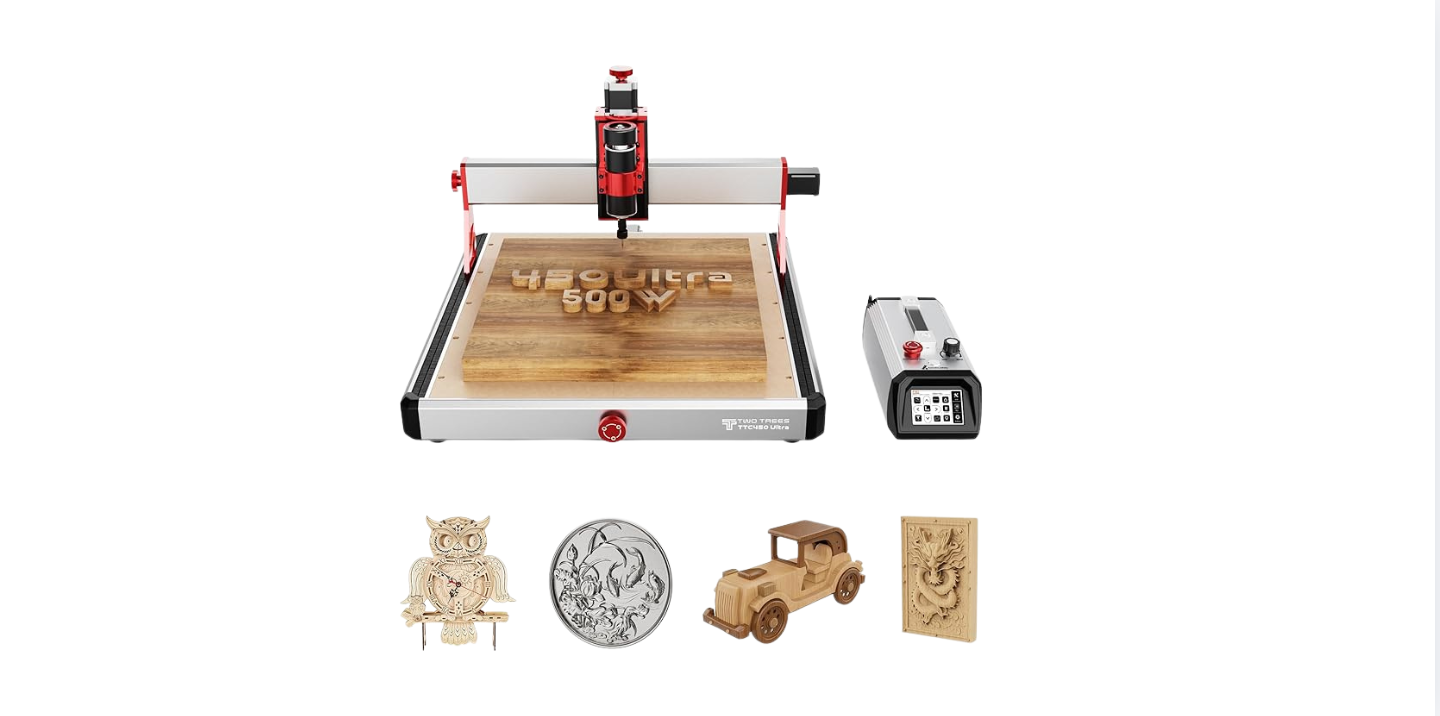
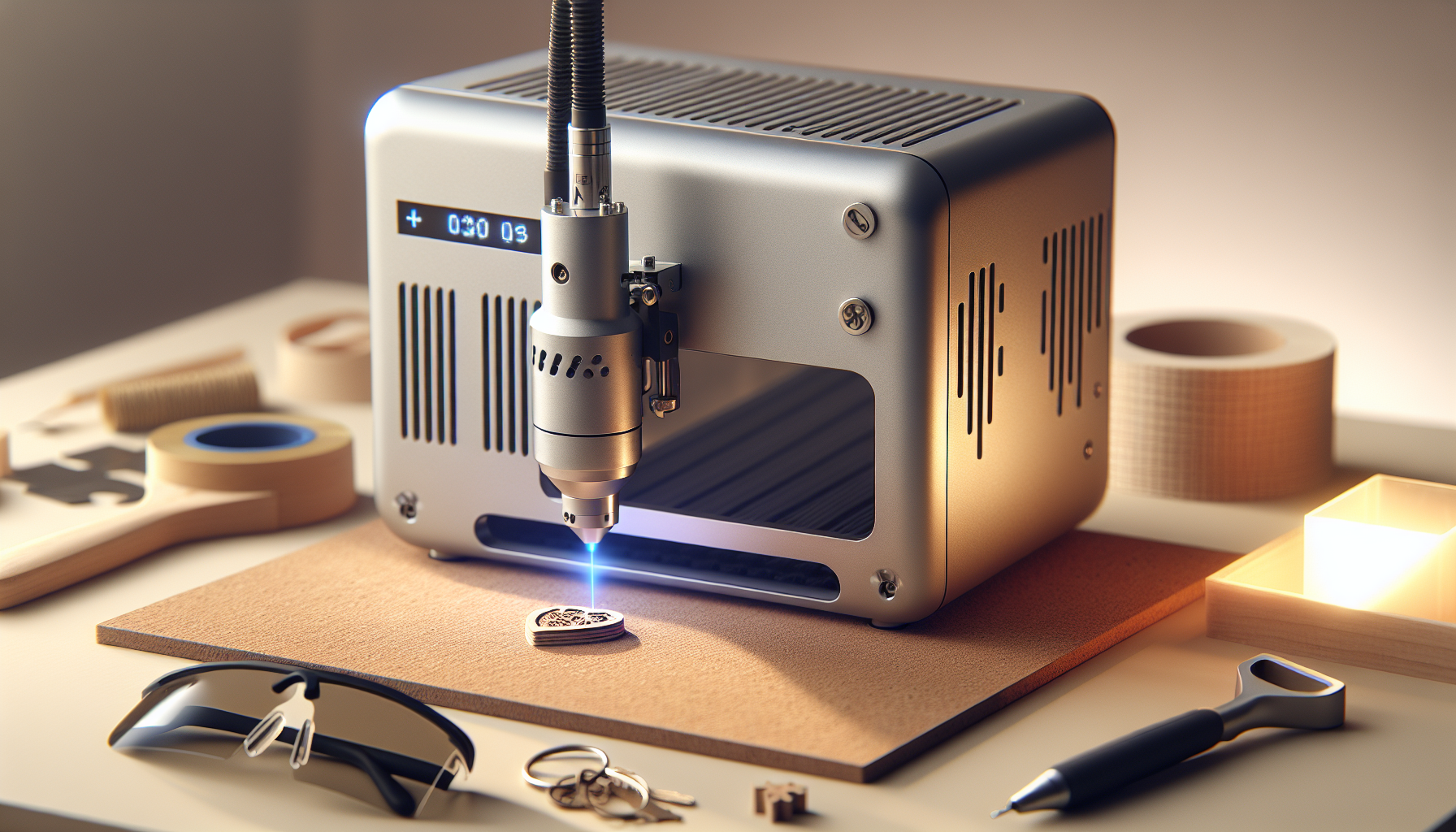
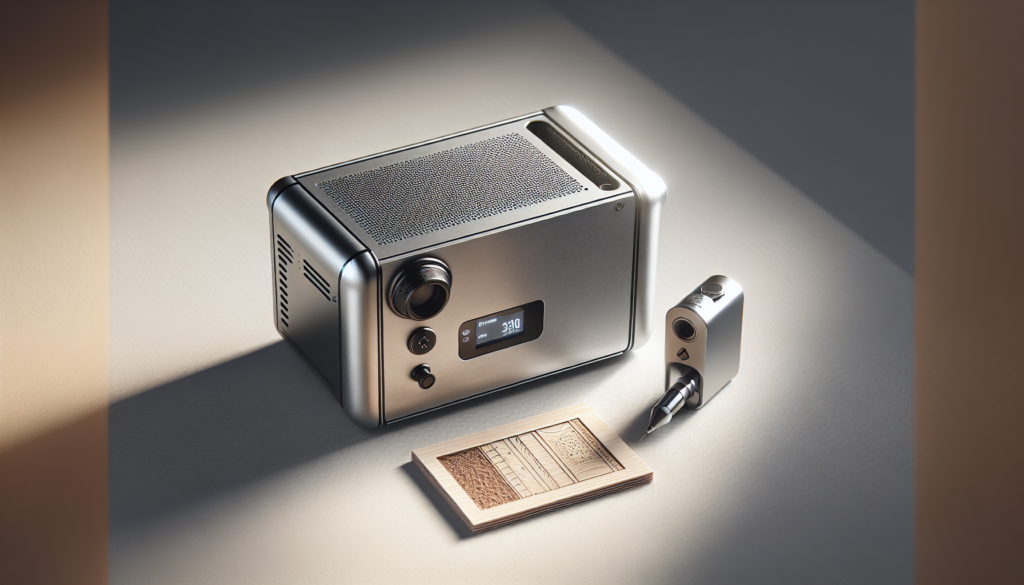
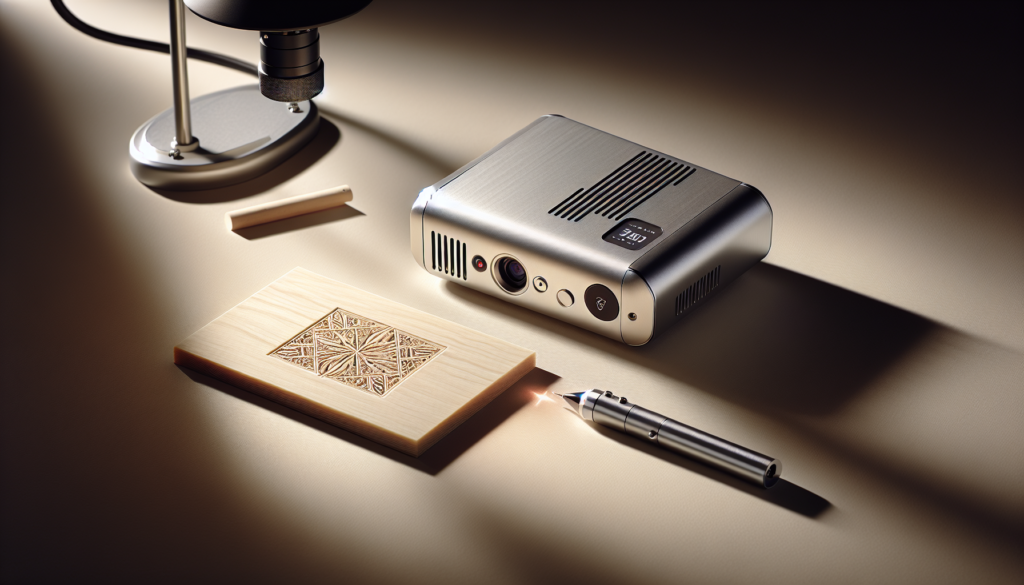
A portable laser engraver is a compact, transportable device that uses a focused beam of light to etch or cut materials. You’ll find models that fit on a tabletop, fold up into a case, or are even light enough to carry between job sites.
A portable unit is meant to be convenient, but convenience doesn’t always mean “plug and play.” You’ll want to weigh portability against power, durability, and the types of projects you want to create.
Why portability matters
Portability lets you take your craft to fairs, client sites, or a friend’s garage without hauling a small furnace on a dolly. That mobility can transform your business or hobby because you’ll be able to offer on-site personalization or produce items where the customers already are.
Yet portability introduces trade-offs: lower cutting power, smaller beds, and sometimes simpler software. You’ll need to decide which compromises you can live with.
Types of portable laser engravers
There are a few main laser technologies you’ll see in devices labeled “portable.” Each has strengths and weaknesses depending on the materials you want to work with.
Diode lasers
Diode lasers are the most common choice for truly portable units. They’re small, affordable, and efficient. You’ll use them mostly for engraving wood, leather, some plastics, and certain coated metals.
Diode lasers are not as powerful for cutting thick materials or engraving bare metal (except when used with marking paste). They are often the best balance between cost and capability for hobbyists and small businesses.
Fiber lasers
Fiber lasers are typically used for marking metals and are very durable. You’ll find them more in industrial portable handheld units rather than compact desktop engravers. They excel at producing high-contrast marks on stainless steel, aluminum, and some alloys.
They’re pricier and more specialized, and the models labeled portable can still be heavier and more power-hungry than diode machines.
CO2 lasers
CO2 lasers produce a wavelength that’s excellent for organic materials like wood, leather, glass, and acrylic. They’re common in larger workshop machines and less common in truly portable setups because they often require larger optics and more robust cooling.
Some small CO2 systems exist that are semi-portable, but you’ll trade weight and footprint for their superior cutting ability on non-metal materials.
Key specifications to evaluate
When you look at product descriptions, the numbers seem like a foreign language. Here’s what the important specs mean for your projects.
- Laser power (W): Determines cutting ability and speed. Higher watts cut thicker materials but often require bigger power supplies and cooling.
- Wavelength (nm): Affects which materials the laser interacts with. Diode lasers usually sit around 445–460 nm; CO2 is ~10,600 nm; fiber is ~1064 nm.
- Working area (mm/in): The maximum size of the piece you can engrave in one pass. Portable units often have smaller working areas.
- Resolution (DPI): Affects engraving detail. Higher DPI yields finer detail at the cost of slower engraving.
- Speed (mm/s): How fast the head moves. Higher speed means faster jobs but sometimes lower detail if settings aren’t balanced.
- Duty cycle: How long the unit can run before needing rest or cooling. Portable units often have limited duty cycles.
Specification meaning and impact
You’ll find it helpful to compare these specs side-by-side so you can see the trade-offs quickly.
| Specification | What it means | Impact on projects |
|---|---|---|
| Laser power (W) | Output energy of laser beam | Higher = better cutting, faster engraving on tough materials |
| Wavelength (nm) | Laser color/type | Determines which materials absorb the beam effectively |
| Working area | Size of engraving bed | Limits project size; bigger beds support larger items |
| Resolution (DPI) | Detail density | More DPI = finer detail but takes longer |
| Speed (mm/s) | Head movement speed | Faster jobs, potential trade-off in precision |
| Duty cycle | Continuous operation limit | Longer duty cycle = better for production runs |
Materials you can engrave and cut
Knowing what materials you plan to use will guide your buying decision more than brand loyalty. Portable diode lasers are great for many substrates, but not all.
Common materials and what to expect
You’ll probably work with these materials most often, and each behaves differently under a laser.
- Wood: Engraves and cuts well; cut thickness depends on power.
- Acrylic: Engraves nicely and cuts cleanly on higher-powered models.
- Leather: Engraves and cuts on most diode systems; watch fumes.
- Paper and cardboard: Engraves and cuts easily with low power.
- Anodized aluminum: Marks well with fiber lasers and with some diode lasers using marking paste.
- Stainless steel: Typically requires fiber laser for direct marking.
- Glass: Can be engraved with CO2 or with specialized diode setups using raster engraving.
- Stone and ceramic: Engraveable with CO2 and sometimes diode lasers for surface marking.
Material compatibility table
Use this quick reference to see what type of laser and approximate power you’d need.
| Material | Diode Laser | CO2 Laser | Fiber Laser | Typical Power Range |
|---|---|---|---|---|
| Wood | Yes (good) | Yes (excellent) | Rarely | 2–40 W |
| Acrylic | Yes (thinner/low power) | Yes (excellent) | No | 3–40 W |
| Leather | Yes (good) | Yes (good) | No | 2–30 W |
| Cardboard/Paper | Yes (excellent) | Yes | No | 1–10 W |
| Glass | Limited (surface marking) | Yes | Limited | 3–40 W |
| Anodized Aluminum | Limited (with paste) | No | Yes (excellent) | Fiber 10–50 W |
| Stainless Steel | No | No | Yes (best) | Fiber 20–100 W |
| Stone/Ceramic | Limited | Yes (surface) | No | 5–40 W |
Software: what you need to know
The software is where your creative ideas get translated into laser motion. You’ll be juggling vector and raster work, drivers, and sometimes proprietary ecosystems.
You’ll want software that can import common file formats, offer a reliable preview, and control speed, power, and passes. Better software often saves you time and material costs.
Types of software
There are two primary kinds of software in this space: design programs and controller/CAM software.
- Design (vector/raster): Adobe Illustrator, Inkscape, Affinity Designer for creating files.
- Controller/CAM: LightBurn, LaserGRBL, xTool Creative Space, Snapmaker Luban, and manufacturer apps for sending jobs to the engraver.
You’ll likely use both in your workflow: design in one and control in the other.
Essential software features
When comparing options, look for these features:
- File format support: SVG, DXF, PDF, PNG, JPG, BMP.
- Layer control: Separate vector/cut jobs from raster/engrave jobs.
- Power and speed control per layer: Essential for consistent output.
- Material libraries: Pre-set settings are helpful starting points.
- Preview and simulation: Shows you what the job will look like before burning your project.
- Auto-detect and camera support: For alignment and registration, especially on pre-printed or tricky objects.
Popular software comparison table
Here’s a compact overview of widely used software, which helps when your machine’s included app is either too limited or too tied to the brand.
| Software | OS | Cost | File Types | Key Strengths |
|---|---|---|---|---|
| LightBurn | Windows, macOS, Linux | Paid (one-time) | SVG, DXF, AI, PNG, JPG, BMP | Robust features, excellent control, community support |
| LaserGRBL | Windows | Free | BMP, JPG, PNG | Great for beginners, free, works with GRBL controllers |
| xTool Creative Space | Windows, macOS | Free | SVG, PNG, JPG | Easy to use, cloud features, tied to xTool devices |
| Snapmaker Luban | Windows, macOS, Linux | Free | SVG, JPG, PNG | Integrates 3D printing/CNC/laser workflows |
| Manufacturer Apps | Varies | Often free | Varies | Designed for specific hardware with integrated settings |
File formats and design basics
You’ll create designs in vector or raster form. Vector paths are used for cutting and precise line engraving. Raster images are used for photo engraving and shading.
When you prepare files, make sure lines intended for cutting are set as vectors and assigned appropriate stroke widths and power/speed settings in the controller software. Use high-contrast, high-resolution images for raster engraving to get the best detail.
Design tips
- Use black-and-white or high-contrast images for photo engraving.
- Simplify paths before cutting to avoid redundant passes.
- Test on scraps with the same material to fine-tune settings before committing.
Workflow: from design to finished piece
A clear workflow prevents frustration. You’ll go from an idea to a finished product in predictable steps if you follow a routine.
- Design or import artwork in vector/raster format.
- Prepare file by separating layers for cuts and engraves.
- Choose material and review recommended settings.
- Place material on the bed and secure it.
- Focus the laser and set origin.
- Run a small test or preview.
- Execute the job while monitoring for issues.
- Post-process (sanding, washing, sealing) as needed.
You’ll learn to estimate how long each step takes; fabrication efficiency improves with practice.
Safety and regulations
Lasers are concentrated light and can be dangerous. You’ll want an understanding of safety guidelines and local regulations before operating or transporting a portable engraver.
Lasers are classified by hazard (Class 1 through Class 4). Many desktop and portable engravers are Class 4 if operated open; enclosed systems can be engineered to Class 1. Class 4 lasers can cause eye and skin injury, ignite materials, and produce hazardous fumes.
Safety essentials
- Always use proper protective eyewear rated for your laser’s wavelength. The wrong goggles are worse than none because they give false confidence.
- Ensure adequate ventilation or fume extraction, especially when working with plastics, leather, or materials producing VOCs.
- Keep a fire extinguisher nearby and never leave jobs unattended for long.
- Use interlocks and secure the workspace to avoid accidental exposure.
- Check local laws and airplane/carriage rules if you’ll transport a laser between states or countries.
Ventilation and fume management
Fumes can be toxic, especially from PVC or materials with chlorine. You’ll need a plan for managing smoke and particulates.
- Use an exhaust fan that vents outdoors or a proper fume extractor with carbon filtration.
- If venting outdoors, ensure you don’t simply blow smoke into someone else’s living room window.
- Consider in-line filters for portable setups if you’re working indoors regularly.
Portability considerations
Portability is more than weight. You’ll want to consider power requirements, set-up speed, and protective packaging.
- Weight and dimensions: Can you lift it into your car alone? Does it fit on the countertop you intend to use?
- Power source: Does it need mains electricity, or are there battery-powered options? Does it require a dedicated circuit?
- Setup and teardown time: Faster setup means fewer excuses not to take it to markets or client sites.
- Durability and case: A proper case and shock protection prevent tears, literal and figurative, when traveling.
Portable features checklist
- Compact form factor and handle or case.
- Quick assembly/disassembly or foldable structure.
- Secure mounting points for transport.
- Lightweight but with stable base during operation.
Accessories and consumables
To get the most out of your engraver you’ll accumulate accessories—some are indispensable, others are ridiculously helpful.
- Protective eyewear specific to wavelength.
- Air assist: blows compressed air onto the cut to improve edge quality and reduce flare-ups.
- Exhaust system or fume extractor with appropriate filters.
- Spare lenses and focus tools for different beam profiles.
- Honeycomb bed, slats, or cutting mat to support workpieces.
- Rotary attachment for engraving cylindrical items like glasses or tumblers.
- Marking paste for metals if your diode laser doesn’t directly mark bare metal.
Consumables list
- Replacement belts, lead screws, and belts for mechanical wear.
- Replacement lenses and mirrors for reflected systems.
- Carbon filters for fume extractors.
- Marking paste or coating materials for specialized marking.
Maintenance and troubleshooting
A laser engraver is remarkably low-maintenance if you treat optics and motion systems kindly. You’ll perform a few simple chores regularly.
- Clean optics with lens-safe wipes and solutions to keep beam quality high.
- Keep rails and belts lightly lubricated and dust-free.
- Check and tighten mechanical fasteners after transport.
- Update firmware and software when trusted releases appear.
Common problems and fixes
- Uneven engraving: Check focus, belt tension, and flatness of the material.
- Laser not firing: Verify software settings, cables, and interlocks.
- Poor cut quality: Increase power, reduce speed, use air assist, and ensure proper focus.
- Misaligned layers or double images: Inspect belts, drivers, and mechanical alignment.
Cost breakdown and what to expect
The sticker price is only the beginning. You’ll want to calculate total cost of ownership over time.
- Initial device price: Entry-level portable diode units start low, while fiber and CO2-based systems cost more.
- Software: Some advanced control programs are paid, and frequent updates or extra modules can cost more.
- Accessories: Fume extraction, rotary attachments, extra lenses, and protective gear add up.
- Consumables and replacement parts: Filters, belts, and optics need replacement occasionally.
- Materials and test waste: You’ll burn through materials while dialing in settings.
Example cost table
Here’s a rough estimate to guide expectations:
| Item | Low Estimate | High Estimate |
|---|---|---|
| Base portable diode engraver | $200 | $2,000 |
| Software (paid) | $0 | $80 (one-time) |
| Fume extractor | $100 | $700 |
| Rotary attachment | $30 | $400 |
| Replacement optics/parts per year | $20 | $300 |
| Consumables and materials per month (hobbyist) | $10 | $100 |
Use cases and projects
You’ll find laser engraving useful in many scenarios. Pick one and start small before scaling up.
- Personalized gifts: Keychains, cutting boards, and custom signs.
- Small-batch production: Jewelry, stickers, etched metal tags.
- On-site services: Pet tag engraving at events or markets.
- Prototyping: Rapid marking of components and simple cutting for mockups.
- Repair and restoration: Marking serial numbers and redoing logos.
Examples you might try
- Engraving a set of wooden coasters with a photorealistic image.
- Cutting custom stencils from thin acrylic for screen printing.
- Marking anodized aluminum pens with client names using a fiber or prepared surface.
- Personalized leather journals for a market table.
Choosing the right model: a practical checklist
You’ll make a better choice if you match the machine to your needs rather than the slick marketing.
- What materials will you use most often?
- Do you need to cut, or just engrave?
- How large are your typical workpieces?
- How portable must the machine be? Weight and packaging matter.
- What’s your budget including accessories and software?
- Is reliable customer support important to you?
- Are you comfortable with firmware and occasional troubleshooting?
Tips for first-time buyers
You’ll save time and money if you avoid mistakes many beginners make.
- Buy the best safety gear first—don’t pretend goggles are optional.
- Start with small, inexpensive materials for testing before using expensive woods or metals.
- Choose software with a strong user community for quicker help.
- Keep an organized workspace and a notebook of settings for each material.
- Consider a slightly more powerful model than you think you need unless you’re absolutely sure of your use case.
Warranties and support
A solid warranty and responsive support can be the difference between a hobby and a nightmare. You’ll want to know what’s covered and how long you’ll wait for parts.
- Check warranty length for optics, electronics, and mechanical parts.
- Look for vendors with active community forums and direct support channels.
- Verify shipping policies for replacement parts, especially if you plan to transport the unit frequently.
Environmental and health considerations
You’ll be creating fumes and tiny particles when you use a laser. Think of your engraver as an appliance that needs the same thought you’d give to a gas stove or a kiln.
- Never engrave PVC or materials containing chlorine; they produce deadly gases.
- Consider local recycling options for printed or coated materials.
- Use a proper extractor or vent outdoors to keep indoor air safe.
- Dispose of carbon filters responsibly and replace them on schedule.
Frequently asked questions
You’ll likely ask some of these once you begin reading specs and watching demo videos.
-
What’s the difference between engraving and cutting?
- Engraving removes surface material to create a mark; cutting severs the material completely. Your laser settings and power determine which happens.
-
Can I mark metals with a diode laser?
- You can mark coated or anodized metals easily; bare metals usually need fiber lasers or marking compounds.
-
How big should the working area be?
- Choose based on your largest recurring project. A slightly larger bed than necessary reduces setup work.
-
Do I need air assist?
- Air assist improves cut quality and reduces burning, especially on thicker materials. It’s highly recommended for cutting.
-
Is LightBurn necessary?
- Not necessary, but it’s a well-regarded paid option with advanced features. Free alternatives exist, but they may be less polished.
-
How long do laser diodes last?
- Lifespan varies; many last thousands of hours but can degrade with heavy use and poor cooling.
-
Can you engrave photos?
- Yes, with raster engraving and proper resolution. Expect to test settings for different materials.
-
Are portable engravers legal to carry by air?
- Check airline rules and local regulations; many airlines restrict batteries and lasers in checked or carry-on luggage.
-
How loud are they?
- Noise depends on fans, motors, and exhaust. Portable units are generally moderate but not silent.
-
What are the main safety certifications to look for?
- Look for CE, RoHS, FCC, and other regional certifications; these indicate compliance with safety standards.
Troubleshooting quick guide
You’ll have issues; everyone does. Here are quick checks before calling for help.
- No power: Check cables, power supply, and switches.
- Laser won’t fire: Confirm software settings, safety interlocks, and firmware.
- Inconsistent engraving: Clean lens and mirrors, check focus, and test belt tension.
- Fire risk: Lower power, add air assist, and never leave a job unsupervised.
Final checklist before buying
You’ll feel calmer if you tick these boxes before ordering.
- Confirm the materials you’ll use and ensure the laser type supports them.
- Verify bed size fits your typical projects.
- Check power needs and whether your workspace can support it.
- Ensure safety features and accessories are available.
- Read warranty and support policies.
- Look for an active user community for real-world advice.
Closing thoughts
You’ll find that buying a portable laser engraver is as much about temperament as it is about specs. If you’re patient, methodical, and willing to learn the odd quirk of your chosen machine, it becomes an almost magical tool for turning ideas into physical objects. If you’re impatient and like immediate perfection, you might prefer buying engraved goods from someone who already tolerates the smoke, the tests, and the obsession with lens cleaning.
But if you like the idea of making a series of tiny perfectly etched objects at three in the morning because the light looks right and the coffee still tastes acceptable, then a portable laser engraver might be the best kind of expensive mistake you ever make.