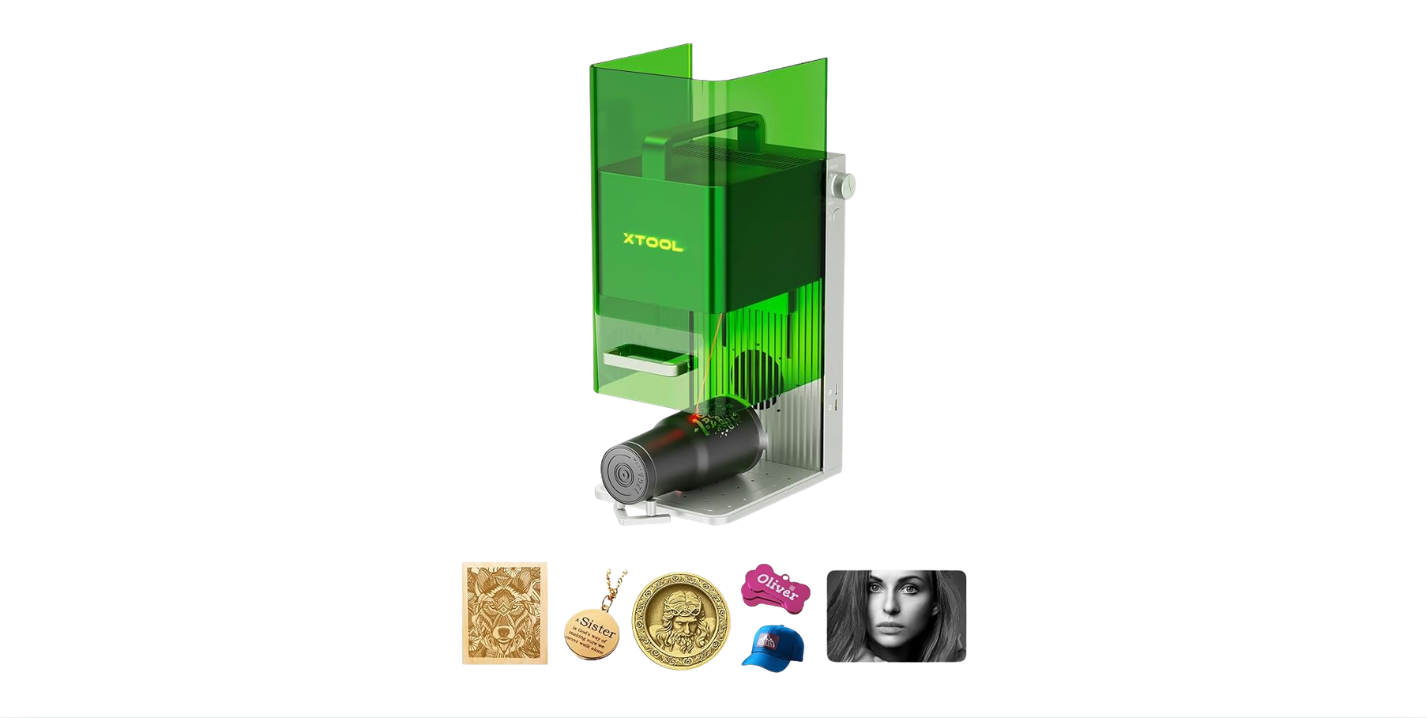
SCULPFUN iCube Pro 5W Laser Engraver Review: Is This Filtered Desktop Laser Worth $260 in 2026?
The single biggest frustration with sub-$300 desktop laser engravers is choosing between cheap open-frame modules that scatter smoke and fumes throughout living spaces or paying premium prices for fully enclosed lasers with proper indoor air management. Most budget lasers in this tier ship without any fume containment, forcing apartment dwellers to add aftermarket ventilation, ducting kits, and air purifiers just to operate the machine without driving roommates and neighbors to madness. The SCULPFUN iCube Pro 5W Laser Engraver solves this with a genuinely built-in smoke filtration system that contains fumes during operation without external enclosure or ducting requirements.
The package pairs that filtration with a 5,000mW (5W) diode laser, an industry-fine 0.06mm laser focus with 0.01mm carving precision, a compact 125 x 125mm working area, engraving speeds up to 10,000 mm/min driven by a 32-bit high-speed motherboard, claimed cutting capacity of soft wood up to 10mm and black acrylic up to 6mm, and a comprehensive safety suite including a detachable laser filter enclosure, temperature alarm (above 45°C), gyroscope detection, limit switches, and an emergency stop button. The unique semi-open structural design enables placing the machine directly on large objects (cabinet doors, wood slabs, storage boxes) for in-place engraving within the 125 x 125mm window.
This review contains affiliate links. If you buy through them, we may earn a commission, at no extra cost to you.
Important Class 4 safety clarification: Despite the built-in smoke filtration system and detachable laser filter enclosure, the SCULPFUN iCube Pro is rated Class 4 (the highest laser hazard classification). The filter enclosure provides partial visual shielding but does not transform the machine into a Class 1 enclosed system. OD-rated laser safety glasses for the 455nm wavelength are still recommended during operation, particularly when the protective filter enclosure is removed for in-place engraving on large objects. The smoke filtration handles fumes; it does not eliminate beam exposure hazards.
Who should buy: Apartment dwellers and shared-space crafters needing indoor-friendly fume management without external ducting, beginners wanting zero-assembly out-of-box operation, hobbyists making coasters, gift tags, leather patches, and small wooden signs, makers wanting to engrave directly on large objects (cabinet doors, wood slabs, decorative panels) using the unique semi-open design, Etsy sellers focused on small personalized items, and buyers who value comprehensive safety features (gyroscope, limit switches, emergency stop, temperature monitoring) at the budget tier.
Who should skip: Buyers needing larger work envelopes (look at the Carverall K15 Pro 5W with 200 x 300mm or Creality Falcon 5W with 400 x 415mm), users requiring fully enclosed Class 1 safety design (look at the Mecpow M1 or DAJA DJ6 instead), shops cutting thick hardwoods or production volumes, anyone needing bare metal engraving without surface blackening, or makers focused on clear acrylic cutting (the 455nm wavelength passes through clear acrylic without absorbing).

SCULPFUN iCube Pro Laser Engraver, 5000mW Desktop Laser Cutter with Smoke Filtration System, Laser Class 4, 125×125mm Engraving Area, No Assembly Required, 0.01mm Carving Precision
$259.99 Only 17 left in stock - order soon.
Quick Verdict: SCULPFUN iCube Pro 5W Laser Engraver
The SCULPFUN iCube Pro delivers what apartment-friendly indoor laser buyers actually need: a built-in smoke filtration system that contains fumes during operation without external ducting, a 5W diode laser with 0.06mm focus and 0.01mm precision for sharp detail engraving, a 32-bit motherboard supporting 10,000 mm/min engraving speeds, comprehensive safety features (detachable filter enclosure, temperature alarm, gyroscope, limit switches, emergency stop), zero-assembly setup, and a unique semi-open design that enables engraving directly on large objects placed beneath the machine. Software flexibility covers SCULPFUN App, LightBurn, and LaserGRBL with Bluetooth and Type-C connectivity.
The trade-offs are honest: the 125 x 125mm working area is genuinely small (limits fixed-position projects to small craft items), the Class 4 classification still requires laser safety glasses despite the filter enclosure, the 5W power restricts cutting to soft wood up to 10mm and black acrylic up to 6mm with multi-pass operations, light-colored or clear acrylic doesn’t cut well due to wavelength absorption physics, and bare metals require surface blackening (paint or marking spray) for visible engraving. Match expectations to the indoor-apartment-friendly small-format positioning and the value math works clearly.
- Best for: Apartment crafters, beginners, indoor hobby use, in-place engraving on large objects, fume-conscious shared spaces
- Skip it if: Need larger work area, fully enclosed Class 1 safety, thick wood cutting, or bare metal engraving without surface prep
- Standout features: Built-in smoke filtration, semi-open design for large objects, 0.06mm focus, comprehensive safety suite
- Main compromises: 125 x 125mm area, Class 4 still requires glasses, 5W cutting limits, no Wi-Fi connectivity
SCULPFUN iCube Pro Specifications
| Brand | SCULPFUN |
| Model | iCube Pro |
| Optical output power | 5,000mW (5W) diode |
| Wavelength | 455nm (blue diode) |
| Laser focus | 0.06mm ultra-fine |
| Carving precision | 0.01mm |
| Working area | 125 x 125mm |
| Maximum engraving speed | 10,000 mm/min |
| Controller | 32-bit high-speed motherboard |
| Machine dimensions | 262 x 300 x 226mm |
| Frame design | Semi-open structure (engrave large objects in-place) |
| Safety classification | Class 4 laser |
| Smoke filtration | Built-in filtration system (no external ducting required) |
| Safety features | Detachable laser filter enclosure, temperature alarm (above 45°C), gyroscope detection, limit switches, emergency stop |
| Cut capacity (wood) | Soft wood up to 10mm |
| Cut capacity (acrylic) | Black/dark acrylic up to 6mm |
| Compatible materials | Wood, leather, bamboo, ceramics, stainless steel (with surface blackening) |
| Software | SCULPFUN App, LightBurn, LaserGRBL |
| Connectivity | Bluetooth, Type-C cable |
| Setup | No assembly required |
| ASIN | B0FJS6GZ9D |
Key Features Tested: Where the SCULPFUN iCube Pro Earns Its Price
Built-In Smoke Filtration System
The built-in smoke filtration system is the SCULPFUN iCube Pro’s defining feature and the strongest argument for choosing it over open-frame alternatives at similar price points. The integrated filtration handles fumes generated during wood, leather, bamboo, and acrylic engraving without external ducting, fume hoses, or separate air purifier purchases. For apartment dwellers, classroom programs, and shared-space crafters, this transforms what’s practical: indoor laser operation becomes genuinely viable without redecorating the room or alienating roommates.
Practical benefits include reduced visible smoke during operation, significantly less lingering odor compared to open-frame alternatives, no external ducting kit purchases (saves $50-$150), and no requirement for window-adjacent operation. The filtration doesn’t eliminate fumes entirely (no laser filtration system does), so cracking a window or maintaining basic ventilation remains good practice for extended sessions, but the difference compared to unfiltered alternatives is substantial.
Semi-Open Structural Design
The semi-open frame design enables a unique capability: placing the entire machine directly on top of large objects to engrave them in-place within the 125 x 125mm window. Cabinet doors, wood slabs, storage boxes, decorative panels, and any flat surface larger than the machine footprint can be engraved without disassembly or workpiece manipulation. This solves the “how do we fit this object into a laser?” problem for many home improvement and decoration projects.
Practical applications include engraving designs onto installed cabinet doors without removal, adding decorative patterns to large wood slabs that won’t fit in conventional laser beds, personalizing storage boxes and chests in their finished assembled state, and adding logos to large signage panels in-place. The 125 x 125mm engraving area constraint applies regardless of the underlying object size, so larger designs require tile-and-realign workflows.
5W Diode Laser with 0.06mm Focus
The 5W rating refers to actual optical output (5,000mW) hitting the material. This honest specification means realistic capability for engraving across the supported material list and cutting through soft wood up to 10mm and black acrylic up to 6mm with multi-pass operations. The 0.06mm laser focus is finer than typical 0.08-0.1mm spots in this price tier, producing sharper text engraving and improved photo dithering quality.
Practical benefits include legible 6-8pt text on bamboo and maple, smooth photo dithering on slate and wood, crisp QR codes that scan reliably, and detailed line art on leather and acrylic. The 0.01mm carving precision claim translates to clean multi-pass cut edges and consistent engraving depth across the work area.
Comprehensive Safety Suite
The SCULPFUN iCube Pro includes more safety features than typical budget alternatives:
- Detachable laser filter enclosure: Partial visual shielding that reduces glare and stray light during normal operation
- Temperature alarm above 45°C: Automatic stop when internal temperature exceeds safe operating limits
- Gyroscope detection: Halts operation if the machine tilts or shifts during a job
- Limit switches: Prevents gantry crashes at axis extents
- Emergency stop button: Instant power-down for unexpected situations
This safety suite is genuinely comprehensive for the price tier, though the Class 4 classification still requires OD-rated laser safety glasses for the 455nm wavelength during operation, particularly when the filter enclosure is removed for in-place engraving on large objects.
32-Bit High-Speed Motherboard
The 32-bit motherboard supports the 10,000 mm/min top engraving speed and enables consistent performance during dense raster jobs. Older 8-bit boards struggle with high-DPI photo engraving and complex toolpaths; the 32-bit upgrade ensures the machine maintains motion accuracy at the speed ceiling. Practical benefits include faster batch production cycles, smoother corner handling on intricate vector work, and reliable performance during long photo engraving sessions.
Multi-Device Connectivity
The connectivity options cover diverse workflows:
- SCULPFUN App: Full-featured mobile control with image import, basic vector tools, and machine settings
- LightBurn (paid): Professional desktop control with layers, material library, and advanced toolpath options
- LaserGRBL (free): Open-source desktop alternative for basic operation
- Bluetooth: Wireless control without cable management
- Type-C cable: Most reliable for long jobs and initial setup
The SCULPFUN App is genuinely capable for beginners (more than just a remote control), while LightBurn provides the professional control depth that experienced users require. The dual desktop and mobile flexibility supports varied workflow preferences without forcing operating system or device choices.
Performance by Material
| Material | Performance | Notes |
| Hardwood engraving | Excellent | 0.06mm focus produces sharp text and detail |
| Bamboo engraving | Excellent | Hairline detail at moderate speeds |
| Soft wood cutting (up to 10mm) | Good with patience | Multi-pass, air assist recommended for cleaner edges |
| Vegetable-tanned leather | Excellent | Moderate power preserves edge quality |
| Black/dark acrylic engraving | Excellent | Frosty, sharp engravings |
| Black/dark acrylic cutting (up to 6mm) | Good | Multi-pass, dark colors absorb 455nm efficiently |
| Stainless steel marking | Possible with prep | Surface blackening required (paint or marking spray) |
| Ceramic tile marking | Possible with prep | Surface blackening required for visible contrast |
| Photo engraving on wood | Very good | Dithering and test swatches improve results |
| Clear acrylic engraving | Difficult | 455nm passes through clear material; paint mask workaround |
| Light-colored acrylic cutting | Not recommended | Diode lasers don’t couple efficiently with light colors |
| Bare bright metals | Not without blackening | Surface prep mandatory for visible marks |
| PVC or unknown plastics | Never engrave | Releases toxic chlorine gas |
Wood and Bamboo: The Strong Zone
Wood and bamboo engraving represent where the SCULPFUN iCube Pro performs above its tier. The 0.06mm focus produces sharp text and detailed logos that wider-spot competitors cannot match. The 5W power handles 3-6mm wood cutting with reasonable multi-pass operations, and the 10mm soft wood cutting claim is achievable with patience and air assist (sold separately). Bamboo coasters, gift tags, ornaments, and cutting board personalization become viable production items.
Leather and Cork: Excellent for Personalization
Vegetable-tanned leather develops the satisfying darkening that looks intentional and upscale at moderate power and higher speeds. Cork coasters, leather wallet patches, key fobs, and luggage tags engrave cleanly without char buildup. The smoke filtration handles leather fumes well, supporting indoor leather work that open-frame alternatives make difficult.
Black Acrylic: Strong Cutting Capability
Black or dark cast acrylic absorbs the 455nm wavelength efficiently. The 6mm black acrylic single-pass cutting claim is achievable at slow speeds with proper focus calibration. Multi-pass operations produce cleaner edges. Always use cast acrylic rather than extruded for laser work, and always use dark colors for cutting (clear acrylic passes through the wavelength without absorbing).
Stainless Steel and Ceramics: Surface Prep Required
Bare stainless steel and bare ceramics don’t absorb the 455nm wavelength effectively. Surface blackening through marking spray (CerMark, Brilliant Mark) or matte black paint coating creates the absorption layer needed for visible engraving. Results after surface prep can rival professional workshop output, particularly on flat ceramic tiles and stainless plates. Rounded ceramic mugs require dedicated rotary jigs that aren’t included.
Class 4 Safety Despite Smoke Filtration
The smoke filtration and detachable filter enclosure improve indoor usability significantly, but the Class 4 laser classification still requires proper safety equipment:
- OD 4+ laser safety glasses rated for 455nm wavelength: Required during operation, particularly when the filter enclosure is removed for in-place engraving on large objects. Generic safety glasses do not provide laser-specific protection.
- Filter enclosure as partial protection: The detachable filter provides visual glare reduction but does not transform the machine into Class 1 fully enclosed safety. Use it during normal operation and add laser glasses when removed.
- Ventilation still recommended: The filtration handles most fumes but doesn’t eliminate them entirely. Crack a window or maintain basic airflow during extended sessions.
- Fire safety: Keep an ABC fire extinguisher within arm’s reach. Never leave operating jobs unattended, especially with paper, cardboard, or thin wood.
- Workspace control: Children, pets, and visitors should not approach the machine without proper laser glasses when the filter enclosure is removed.
- Material safety: Never engrave PVC or unknown plastics; the released chlorine gas damages lungs and laser optics.
The temperature alarm, gyroscope detection, limit switches, and emergency stop provide additional safety layers, but operator vigilance and proper laser glasses remain the primary protections against Class 4 hazards.
Setup and First Cuts
The SCULPFUN iCube Pro ships with no assembly required. Realistic time from unboxing to first engrave: 15-30 minutes for first-time users.
Setup Sequence
- Unbox and place on a level, stable surface with adequate clearance
- Connect power and your chosen control device (phone via Bluetooth or computer via Type-C)
- Don OD-rated laser safety glasses for the 455nm wavelength
- Install the SCULPFUN App, LightBurn, or LaserGRBL software
- Pair via Bluetooth or connect via Type-C cable
- Verify the machine homes properly and limit switches function
- Test the temperature alarm and emergency stop functions
- Load a simple test design (20mm test square)
- Run a low-power frame pass to verify positioning
- Engrave a power and speed test grid for material profiling
- Save successful settings as named presets for future jobs
- Practice the in-place engraving capability on a flat scrap surface
Recommended First Project
Bamboo coaster with engraved monogram (under 100mm to fit comfortably). Use a moderate-to-high speed setting with single-pass engraving for the monogram. The project exercises the 0.06mm focus precision, validates the smoke filtration during typical material work, demonstrates the comprehensive safety suite, and produces a usable result that justifies the indoor-friendly positioning. A second project might use the semi-open design to engrave a logo directly on a wooden cutting board placed beneath the machine.
SCULPFUN iCube Pro vs Alternatives
| Machine | Safety Class | Filtration | Power | Work Area | Best For |
|---|---|---|---|---|---|
| SCULPFUN iCube Pro | Class 4 | Built-in smoke filtration | 5W | 125 x 125mm | Indoor apartment use, in-place engraving |
| Mecpow M1 | Class 1 enclosed | Optional P50 extractor | 5W | 100 x 100mm | Class 1 enclosed safety |
| DAJA DJ6 | Class 1 (built-in lens) | None included | 3W | 80 x 80mm | Class 1 portable |
| ACMER S1 3500mW | Class 4 (open) | None included | 3.5W | 130 x 130mm | NRTL certified precision |
| Carverall K15 Pro 5W | Class 4 (open) | None included | 5W | 200 x 300mm | Larger area, WiFi |
SCULPFUN iCube Pro vs Mecpow M1
The Mecpow M1 offers Class 1 enclosed safety with auto-stop lid functionality and modular accessory ecosystem at a similar price point. The SCULPFUN iCube Pro provides built-in smoke filtration in a Class 4 design with the unique semi-open structure for in-place engraving on large objects. Pick the Mecpow M1 for genuine Class 1 enclosed safety; pick the SCULPFUN iCube Pro for built-in fume filtration and in-place engraving capability on objects that won’t fit in conventional laser beds. For a deeper comparison, our Mecpow M1 review covers the Class 1 enclosed alternative.
SCULPFUN iCube Pro vs DAJA DJ6
The DAJA DJ6 offers Class 1 (Level 1) laser certification with built-in eye-protection lens at a lower price point but in a much smaller 80 x 80mm work area with 3W power. The SCULPFUN iCube Pro provides higher 5W power, larger 125 x 125mm work area, built-in smoke filtration, and the unique semi-open in-place engraving design at higher Class 4 safety responsibility. Pick the DAJA DJ6 for Class 1 portable safety and lower price; pick the SCULPFUN iCube Pro for filtration and in-place engraving capability. Our DAJA DJ6 review covers the Class 1 portable alternative.
SCULPFUN iCube Pro vs ACMER S1 3500mW
The ACMER S1 3500mW offers a finer 0.04mm laser spot for sharper detail engraving and NRTL safety certification documentation at a lower price point but with no smoke filtration and a smaller 130 x 130mm work area. The SCULPFUN iCube Pro provides built-in filtration, slightly higher 5W power, and the semi-open design while accepting the 0.06mm focus (still industry-fine compared to most alternatives). Pick the ACMER S1 for finest precision and certified safety at lower price; pick the SCULPFUN iCube Pro for filtration and in-place engraving. Our ACMER S1 3500mW review covers the precision-focused alternative.
SCULPFUN iCube Pro vs Carverall K15 Pro 5W
The Carverall K15 Pro 5W offers a much larger 200 x 300mm (near-A4) work area with 5W power and WiFi connectivity at a higher price point but with no filtration and Class 4 open-frame design. The SCULPFUN iCube Pro provides built-in filtration in a smaller 125 x 125mm work area but with the unique in-place engraving capability that the Carverall lacks. Pick the Carverall K15 Pro for larger work envelope and WiFi convenience; pick the SCULPFUN iCube Pro for indoor-friendly filtration and large-object engraving. Our Carverall K15 Pro 5W review covers the larger-area alternative.
Drawbacks and Considerations
| Consideration | Detail |
|---|---|
| 125 x 125mm work area | Genuinely small. Fixed-position projects limited to coasters, dog tags, leather patches, small signs. Tile larger designs or use semi-open design for in-place engraving on larger objects. |
| Class 4 despite filtration | The smoke filtration handles fumes; it doesn’t transform the machine into Class 1 enclosed safety. OD-rated laser glasses still required during operation, particularly when filter enclosure is removed. |
| 5W power cutting limits | Soft wood up to 10mm and black acrylic up to 6mm with multi-pass. Thicker hardwoods or production cutting need higher-power machines. |
| Light-colored acrylic limitations | 455nm wavelength doesn’t couple efficiently with light or clear acrylic. Cutting limited to dark colors; clear acrylic requires paint masking workaround. |
| Bare metal requires surface prep | Stainless steel and ceramics require blackening (paint or marking spray) for visible engraving. Plan for marking spray purchases as ongoing consumables. |
| No WiFi connectivity | Bluetooth and Type-C only. Some buyers prefer WiFi for cross-room control. Bluetooth range may limit placement flexibility. |
| No included rotary or air assist | Cylindrical engraving and cleaner cutting require separate accessory purchases. Plan for additional spending beyond the machine. |
| Filter maintenance | Built-in filtration components require periodic cleaning or replacement. Verify filter availability and replacement intervals on the SCULPFUN support page. |
Maintenance for Long-Term Reliability
- After every session: Wipe the laser lens and protective filter window with proper lens wipes; vacuum dust from frame
- Weekly: Empty or clean smoke filtration components per the manual’s guidance
- Monthly: Verify limit switches, gyroscope, temperature alarm, and emergency stop function correctly
- Per material change: Confirm focus calibration; check the protective filter window for accumulated debris
- Material safety: Never engrave PVC or unknown plastics regardless of curiosity
- Long-term: Plan for diode module replacement after thousands of operating hours and filter replacement per manufacturer schedule
Who This Laser Is For
Apartment dwellers and shared-space crafters: The built-in smoke filtration system is the SCULPFUN iCube Pro’s strongest argument. If you’re working in an apartment, shared kitchen, or any environment where Class 4 lasers without filtration would be impractical, the iCube Pro addresses real fume management concerns. The combination of filtration and the comprehensive safety suite (gyroscope, limit switches, emergency stop, temperature alarm) creates the most apartment-friendly Class 4 laser at this price point.
Beginners wanting zero-assembly setup: The fully assembled out-of-box design and the SCULPFUN App’s beginner-friendly workflow create a low-friction laser engraver entry point. Combined with the safety features, this is genuinely accessible for first-time laser buyers comfortable with Class 4 safety responsibility.
Hobbyists making small personalized items: The 125 x 125mm work area suits coasters, dog tags, leather patches, gift tags, ornaments, and small wooden signs. The 0.06mm focus delivers sharp detail that makes these items look professional rather than crafty.
Makers wanting to engrave directly on large objects: The unique semi-open structural design enables placing the entire machine on cabinet doors, wood slabs, storage boxes, and large decorative panels for in-place engraving within the 125 x 125mm window. This solves the “object too large for the laser bed” problem that conventional laser designs cannot address.
Etsy sellers focused on small personalized goods: The combination of detail precision, indoor-friendly filtration, comprehensive safety, and quick batch production through the 32-bit motherboard supports small-batch personalized item businesses without dedicated workshop space.
Final Verdict: Should You Buy the SCULPFUN iCube Pro?
Not the largest work area in its category. Not the safest enclosed Class 1 design. Not the highest-power laser available. But the most apartment-friendly indoor laser with built-in fume filtration plus the unique in-place engraving capability at this price point.
The SCULPFUN iCube Pro 5W Laser Engraver delivers what indoor-conscious laser buyers actually need: built-in smoke filtration that contains fumes during operation without external ducting, a 5W diode laser with industry-fine 0.06mm focus and 0.01mm carving precision, a 32-bit motherboard supporting 10,000 mm/min engraving speeds, comprehensive safety features including detachable filter enclosure, temperature alarm, gyroscope detection, limit switches, and emergency stop, zero-assembly out-of-box readiness, and the unique semi-open structural design that enables engraving directly on large objects placed beneath the machine.
Buy the SCULPFUN iCube Pro if: You work in an apartment or shared space where indoor fume management matters, you want zero-assembly out-of-box operation with comprehensive safety features, you make small personalized items where the 125 x 125mm work area matches typical project sizes, you need to engrave designs directly on large objects (cabinet doors, wood slabs, storage boxes), you’re comfortable with Class 4 safety responsibility and proper laser glasses, or you value built-in filtration over external ducting complexity.
Skip the SCULPFUN iCube Pro if: You need fully enclosed Class 1 safety (look at the Mecpow M1 instead), you require larger work envelopes (look at the Carverall K15 Pro 5W with 200 x 300mm), you focus on thick hardwood cutting beyond 10mm soft wood capacity, you need bare metal engraving without surface blackening, you cut light-colored or clear acrylic frequently, or you prioritize WiFi connectivity over Bluetooth and Type-C.
This review contains affiliate links. If you buy through them, we may earn a commission, at no extra cost to you.
For broader context on choosing the right laser engraver, browse our Portable Laser Engravers review library covering options across every price tier, or explore the Fabrication Intelligence resource library for laser safety and workflow fundamentals.
Frequently Asked Questions
Does the built-in smoke filtration eliminate the need for ventilation?
The smoke filtration significantly reduces visible smoke and lingering odor compared to open-frame alternatives, but it doesn’t eliminate fumes entirely. Crack a window or maintain basic airflow during extended sessions for best indoor air quality. The filtration handles most engraving fumes well; some materials (particularly dark acrylic and certain leathers) may still produce hints of odor that benefit from additional ventilation.
Is the SCULPFUN iCube Pro really Class 4 despite the filter enclosure?
Yes. The detachable filter enclosure provides partial visual shielding and reduces glare during operation, but it does not transform the machine into a Class 1 fully enclosed system. The Class 4 classification means OD-rated laser safety glasses for the 455nm wavelength are still recommended during operation, particularly when the filter enclosure is removed for in-place engraving on large objects.
Can it cut metal?
The 5W diode at 455nm wavelength cannot cut bare metal. It can mark stainless steel and ceramics with surface blackening (paint or marking spray) to create the absorption layer needed for visible engraving. For bare metal engraving, fiber lasers or 1064nm IR laser modules are required regardless of diode power. The machine handles painted, anodized, and powder-coated metals without surface prep.
What materials can it cut versus engrave?
Cuts: soft wood up to 10mm with multi-pass operations, black or dark cast acrylic up to 6mm. Engraves: wood, leather, bamboo, ceramics (with blackening), and stainless steel (with blackening). Cannot cut: clear or light-colored acrylic (455nm doesn’t couple efficiently), bare metals without surface prep, or PVC/unknown plastics (toxic chlorine gas).
How does the semi-open design work?
The semi-open structural design enables placing the entire machine directly on top of large objects (cabinet doors, wood slabs, storage boxes, decorative panels) to engrave them in-place within the 125 x 125mm window. The machine’s 262 x 300 x 226mm footprint sits on the larger object’s flat surface, and the laser engraves through the open underside within its working envelope. Larger designs require tile-and-realign workflows.
Does it work with LightBurn?
Yes. The SCULPFUN iCube Pro supports LightBurn (paid, $60), LaserGRBL (free), and the SCULPFUN App. The Type-C cable connection provides reliable communication for long jobs, and Bluetooth supports cordless convenience for shorter operations. The 32-bit motherboard handles dense raster jobs without the lag common to 8-bit alternatives.
How big is the working area?
125 x 125mm fixed engraving area. This sweet spot accommodates coasters, dog tags, gift tags, leather patches, small wooden signs, ornaments, and badges. Compared to alternatives like the DAJA DJ6 (80 x 80mm) or Mecpow M1 (100 x 100mm), the SCULPFUN iCube Pro provides meaningfully more working space.
Do I need air assist?
Recommended for cleaner cutting on wood and acrylic. Air assist (sold separately) directs airflow at the cutting point, clearing smoke from the beam path and producing cleaner edges with reduced char buildup. Essential for serious cutting work, optional for engraving-focused workflows. Budget for separate air assist kit purchase if cutting is part of your typical use.
What’s included with the laser?
Per the Amazon listing, the iCube Pro ships pre-assembled with the laser module installed, power supply, USB Type-C cable, basic tools, and quick-start documentation. Verify exact contents on the Amazon page before unboxing. The SCULPFUN App is downloaded separately from app stores; LightBurn and LaserGRBL are obtained from their respective developers.
Is the SCULPFUN iCube Pro worth buying?
For the right buyer, absolutely. The combination of built-in smoke filtration, comprehensive safety suite, 0.06mm laser focus precision, 5W cutting capability, semi-open in-place engraving design, and zero-assembly setup delivers genuine value at $259.99 for indoor-conscious buyers. If you work in apartments or shared spaces where fume management matters, this machine earns its place. If you need fully enclosed Class 1 safety, larger work envelopes, or more cutting power, alternatives like the Mecpow M1, Carverall K15 Pro 5W, or Creality Falcon 10W better match those requirements.
Key Takeaways
- Built-in smoke filtration system contains fumes during operation without external ducting requirements, making indoor apartment use genuinely viable
- 5W diode laser with industry-fine 0.06mm focus and 0.01mm carving precision produces sharp text engraving and detailed photo dithering
- Unique semi-open structural design enables placing the machine directly on large objects (cabinet doors, wood slabs, storage boxes) for in-place engraving within the 125 x 125mm window
- Comprehensive safety suite includes detachable laser filter enclosure, temperature alarm above 45°C, gyroscope detection, limit switches, and emergency stop
- 32-bit high-speed motherboard supports 10,000 mm/min engraving speeds and consistent performance during dense raster jobs
- Cut capacity covers soft wood up to 10mm and black/dark acrylic up to 6mm with multi-pass operations
- Class 4 classification despite filtration; OD-rated laser glasses still recommended for 455nm wavelength during operation
- Multi-device connectivity covers SCULPFUN App, LightBurn, LaserGRBL via Bluetooth and Type-C cable (no WiFi)
- Stainless steel and ceramic engraving requires surface blackening (paint or marking spray) for visible contrast
- Best for apartment dwellers, beginners, in-place engraving on large objects, and indoor-conscious crafters; not for thick hardwood cutting, fully enclosed Class 1 needs, or bare metal work
Disclosure: As an Amazon Associate, I earn from qualifying purchases.